A Calm Way to Organise Files Across Your Devices
Compare three simple ways to name and store personal files, then choose a routine that fits how you work across devices.
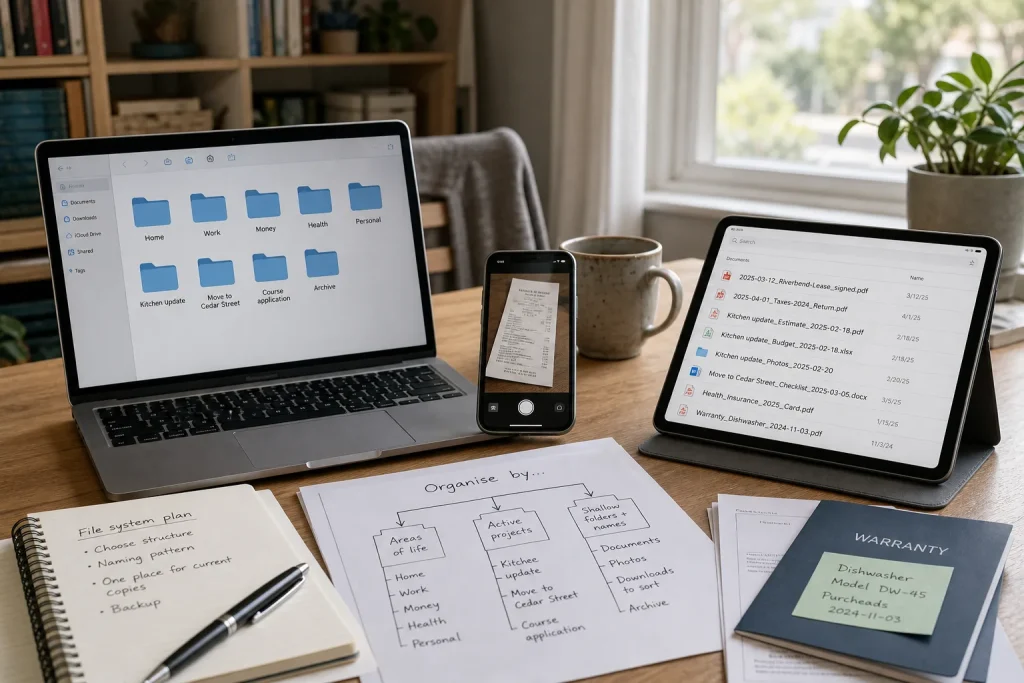
You save a school form on your laptop, photograph a receipt on your phone, and later search a tablet for the latest version of a document. The files are all there, but their names and locations offer little help. A calm system does not require a new app or a perfect archive. It needs a small set of folders, names that explain what a file is, and a clear choice about which device or location holds the current copy.
There are three workable approaches: organise by broad area of life, organise by active project, or keep a shallow folder structure and rely on descriptive filenames. Each can work across Windows, macOS, iOS, Android and cloud storage because the method depends on ordinary folders and file names, not a particular program. The right choice depends on what you usually remember when you look for something: its subject, the task it belongs to, or a phrase from its name.
Choose a structure that matches how you search
Before moving files, consider the question you are most likely to ask later. “Where are my tax documents?” points toward subject folders. “Which files belong to the kitchen renovation?” points toward project folders. “What was the name of that signed permission form?” suggests descriptive filenames and a shallow structure.
Do not try to make every file fit a complicated taxonomy. A folder system is useful when it narrows a search, not when it requires you to remember several levels of classification. Start with a few top-level folders and add another level only when a folder becomes difficult to scan.
Option one: organise by broad areas of life
Make a small set of folders for recurring parts of your life, such as Home, Work, Money, Health and Personal. Inside each, add only the folders that answer a real need. Home/Appliances might hold manuals and warranty documents; Money/Taxes might hold forms and submitted returns.
This approach suits people who return to records long after a task is over. A lease, insurance letter or appliance manual remains associated with its subject even when the original project has ended. It also works well when several devices use the same synced folder: the main categories remain visible on a phone or computer, while specific documents stay grouped.
The tradeoff is that some files fit more than one area. A document about a home loan could belong under Home or Money. Choose one home for the original rather than keeping several editable copies. If another location needs access, use a shortcut or link where the system supports it, or make the filename clear enough to find through search.
Option two: organise by active project
Create a folder for a task with a clear beginning and end, such as Kitchen update, Move to Cedar Street or Course application. Keep related estimates, forms, notes and reference images together. When the project is finished, move the folder into an archive area or file important records into a lasting subject folder.
Project folders suit people who gather different kinds of material around one outcome. They reduce the need to decide whether a note belongs to “home” or “money” while the work is underway. A single folder can keep a form beside the supporting image or a draft beside the final document.
The drawback is that an old project name may not be obvious years later. “Kitchen update” is more useful than “Project 3,” but a dated folder name can make its timing clearer. Keep enduring records, such as a signed contract or appliance manual, in a lasting subject folder after the project closes. Avoid copying everything into multiple archives; choose one authoritative location for each file.
Option three: use shallow folders and strong filenames
If you prefer searching to browsing, keep only a few broad folders—perhaps Documents, Photos, Downloads to sort and Archive—and make filenames do more of the work. A useful name identifies the subject, document type and, when relevant, date or status. For example, 2025-03-12_Riverbend-Lease_signed.pdf is more informative than scan-final2.pdf.
This approach suits people who remember keywords and use built-in search. It also travels easily between devices and file managers because filenames remain visible without a special database. Keep names readable: a few descriptive terms are more useful than a long string of abbreviations.
Its weakness is that a broad folder can still become crowded, and search quality varies. A vague name remains hard to retrieve, while duplicate names can make it unclear which file is current. Use this option if you are willing to rename files as you save them and to clear the downloads folder on a regular occasion.
Use a naming pattern that survives across devices
For documents, a practical pattern is YYYY-MM-DD_Subject_Document-type_Status. Use the date that helps identify the file: a meeting date, issue date or submission date. If no date matters, leave it out rather than inventing one. Use hyphens or underscores between parts, and avoid punctuation that can behave differently across operating systems. Keep names plain enough to type and recognize on a small screen.
Be precise about versions. Instead of saving a series of files called final, final-new and final-revised, use a date or a clear state such as draft, review or signed. When a document is complete, make the final state explicit and retain earlier drafts only if they are useful. A PDF may be appropriate for a fixed, signed copy; keep the editable original when you may need to revise it later.
For photographs, use a folder by event or subject if that is how you browse. If you rename selected images, include a short subject and a sequence where needed, such as garden-planter_01.jpg. Do not rename an entire camera roll unless you have a clear reason. The aim is to make important files identifiable, not to turn ordinary saving into a clerical job.
Decide where the authoritative copy lives
Organisation across devices depends on knowing which copy is current. Choose one main location for working files: a synced folder, a computer’s document folder that you back up, or a network location you already use. Avoid editing separate copies on different devices and hoping to reconcile them later.
Syncing and backup are not the same thing. A synced folder can make a change or deletion appear on connected devices. A backup is a separate recoverable copy. If a file matters, use a backup method appropriate to your devices and keep an independent copy where practical. For sensitive records, use the security and access controls available on your devices and storage service; do not place private documents in a shared folder without checking who can open it.
On a phone, save documents into the same main folder structure when the file manager permits it. If an app stores an export in its own area, move the file to the chosen location after checking that it opens. On a computer, use the same folder names rather than creating a second, device-specific system. The exact screens differ, but the underlying routine does not.
Set a light maintenance routine
At a regular point—perhaps after paying bills or finishing a project—review only the files that have accumulated since the last sort. Rename files with unhelpful labels, move important downloads to their proper folders, and remove obvious duplicates after confirming which copy you need. Do not begin by reorganising every old photograph or document. A small, repeatable habit is easier to sustain than a complete archive overhaul.
Use an Inbox or Downloads to sort folder as a temporary landing place, not a permanent home. If it repeatedly fills with the same kind of file, adjust the saving routine: save that type directly to its usual folder. For records with retention or legal significance, follow the relevant guidance for your situation or ask a qualified professional rather than deleting them based on a general tidy-up rule.
How to choose among the three approaches
- Choose broad life-area folders if you often look for records by subject and expect to keep them for a long time.
- Choose project folders if you regularly collect different file types for a task that eventually ends.
- Choose shallow folders with descriptive names if you rely on search and prefer not to browse nested folders.
- Combine approaches sparingly if your files have two different rhythms: active work can live in project folders, while enduring records go into subject folders.
- Keep one authoritative copy for each working document, and use links or shortcuts rather than creating multiple editable versions when possible.
- Try the structure on new files first. If you cannot quickly decide where a new document belongs, simplify the categories before moving your archive.
A hypothetical worked example for a phone and laptop
Imagine a person has a laptop and phone, a new rental application, several downloaded forms, and a folder of old files named Stuff. They often search by the subject of a document, but the application is an active task. They create three top-level folders in their synced document location: Personal, Projects and Archive. Inside Projects, they create Rental application – Cedar Street. They save the application materials there and rename the completed form 2025-03-12_Cedar-Street_Rental-application_submitted.pdf.
When the application is finished, they move enduring records, such as the signed lease, to Personal/Housing and place the remaining application folder in Archive. They do not copy the signed lease into both locations. On the phone, they open the same synced folder and check that the file appears and opens. The expected result is a clear home for the current task, a lasting place for the lease, and fewer ambiguous copies. The tradeoff is a small amount of sorting when the project ends; if that feels like too much, they could keep all housing documents together under Personal/Housing instead.
Start with a few files, then keep the rule
Pick one approach and apply it to the next handful of documents you save. Use recognizable folder names, make the filename explain the file, and decide where the current copy belongs. Once the routine feels natural, move only the older files you still need. A dependable system is not the one with the most categories; it is the one that lets you retrieve a file without having to remember which device you used when you saved it.
You might also enjoy

How Shared Household Customs Take Shape
Household traditions rarely begin with a grand plan. They grow from small, repeatable actions that people…
Why Some Everyday Objects Feel Easier to Use
A hypothetical kitchen drawer shows how visibility, clear feedback and comfortable handling can make an everyday…